
Description
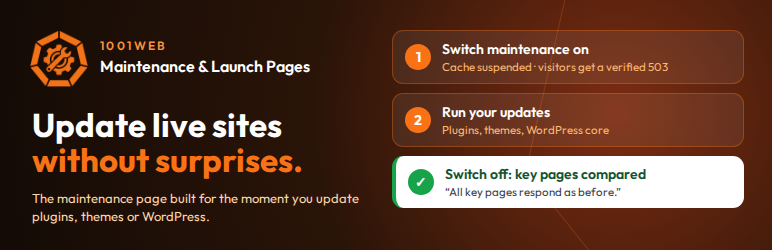
1001Web Maintenance & Launch Pages shows a maintenance page or a coming soon page, and it is built for one moment: updating a live site. Switch it on before you update plugins, themes or WordPress, and off when you are done. Three things happen that a plain maintenance page does not do.
1. Page caching is suspended, then restored
When maintenance is switched on, the plugin saves the settings it is about to change, then:
- switches off the page cache in the settings of WP Fastest Cache, LiteSpeed Cache, Hummingbird, Breeze and SiteGround Optimizer;
- removes the .htaccess blocks of WP Fastest Cache (page cache, browser cache and compression), WP Super Cache and W3 Total Cache, which let the server deliver cached pages before WordPress runs;
- empties the page caches of these plugins and of WP Rocket, WP-Optimize, Cache Enabler and Seraphinite Accelerator, the CSS/JS caches of WP Fastest Cache, LiteSpeed and Autoptimize, and the object cache;
- runs its Cache Guard, built into the plugin (no file is added to your site). On every public page while maintenance lasts, it defines DONOTCACHEPAGE and sends no-cache headers; at most once a minute, it also deletes the files in the cache folders it knows (pages, and the CSS/JS files of WP Fastest Cache and LiteSpeed) and asks a LiteSpeed server to purge its cache. WP Rocket is kept from writing new cache files. WordPress loads plugins in alphabetical order, so this plugin runs before the cache plugins it guards.
When maintenance is switched off, the caches are emptied again. Only the values the plugin switched off are put back, and only if they still hold the value it set: a setting you change in the meantime is kept. The .htaccess file is restored byte for byte if nobody else changed it; otherwise only the removed cache blocks are added back, at the top. The file handled is the one your web server reads for the site address, also when WordPress lives in its own folder.
These changes need direct file access: if WordPress writes files through FTP or SSH on your server, maintenance is not switched on and the plugin tells you why.
Varnish, Nginx and CDN caches such as Cloudflare are not changed. The check below shows whether one of them still serves the normal site.
2. The 503 is checked, not assumed
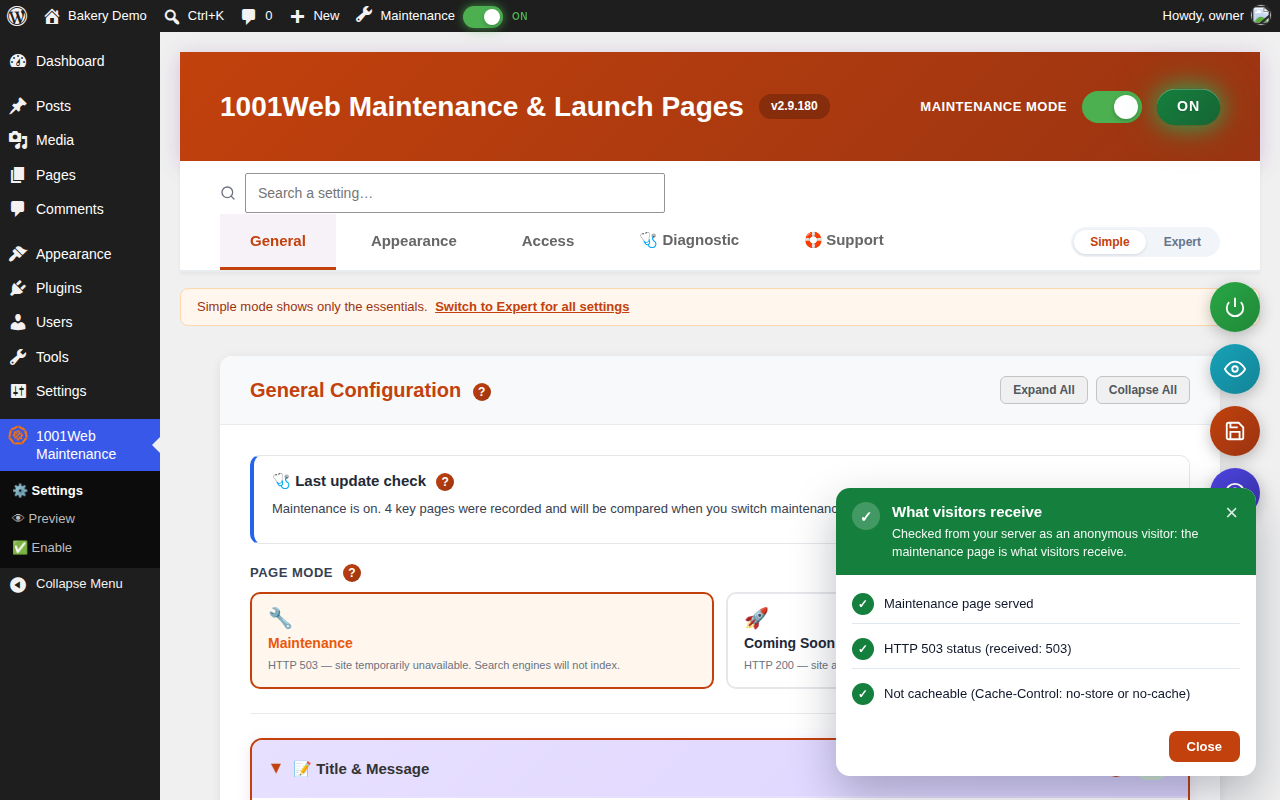
Right after you switch maintenance on, your server requests the home page at its public address, without cookies, as an anonymous visitor would. It shows what came back: whether it is the maintenance page, the HTTP status, the Retry-After header, and whether caching is forbidden.
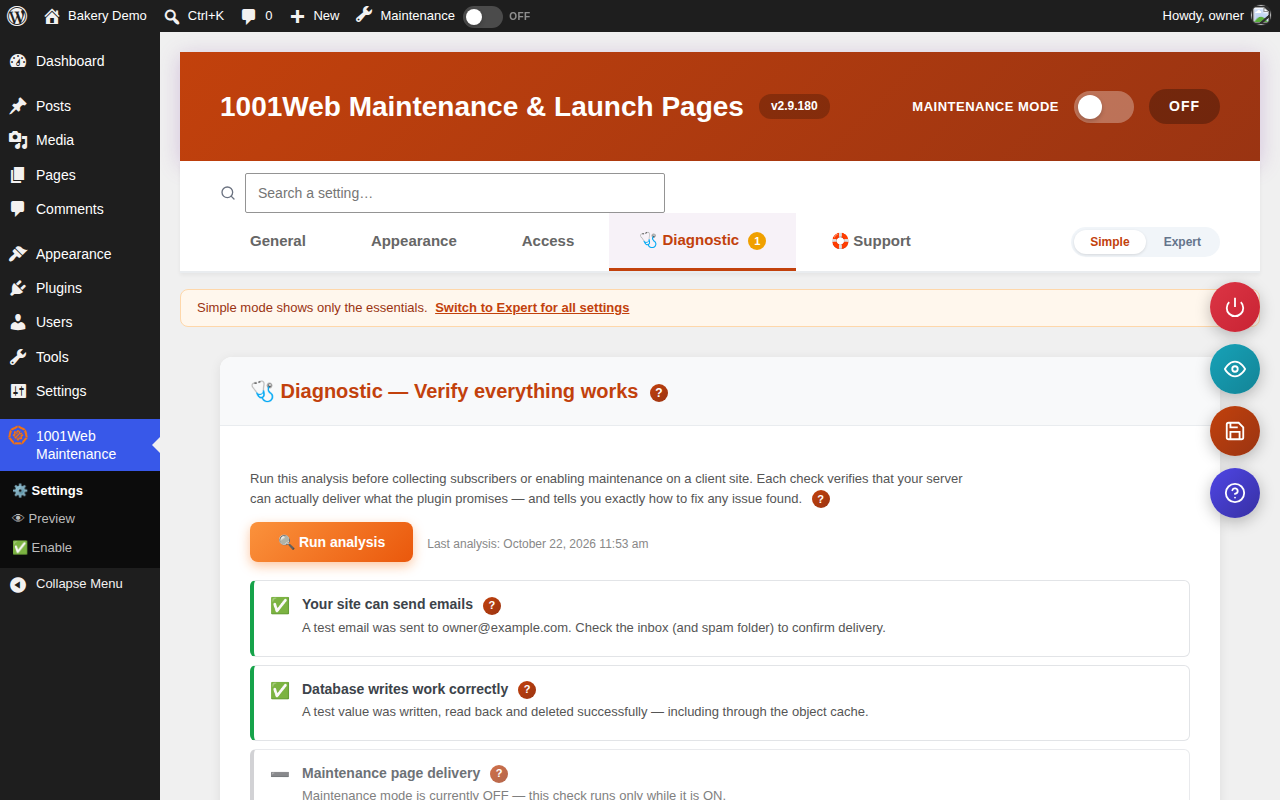
When your domain points to a proxy or a CDN, the request goes through it, so a CDN that still serves a cached copy is caught. Some hosts resolve their own domain internally and skip the CDN: the plugin cannot detect this, so if your site is behind a CDN, confirm once in a private window. A security challenge from a CDN or a firewall cannot be judged, and a WordPress error page is reported as a failure: in both cases the panel says so. The Diagnostic tab runs the same check on demand.
3. Key pages are compared before and after
Just before maintenance starts, the plugin records the HTTP status and the size of up to six pages: the home page, the static front page, the posts page, the WooCommerce shop page, then the top-level items of the menu in your theme’s main location (with a block theme, or without a menu, your top-level pages).
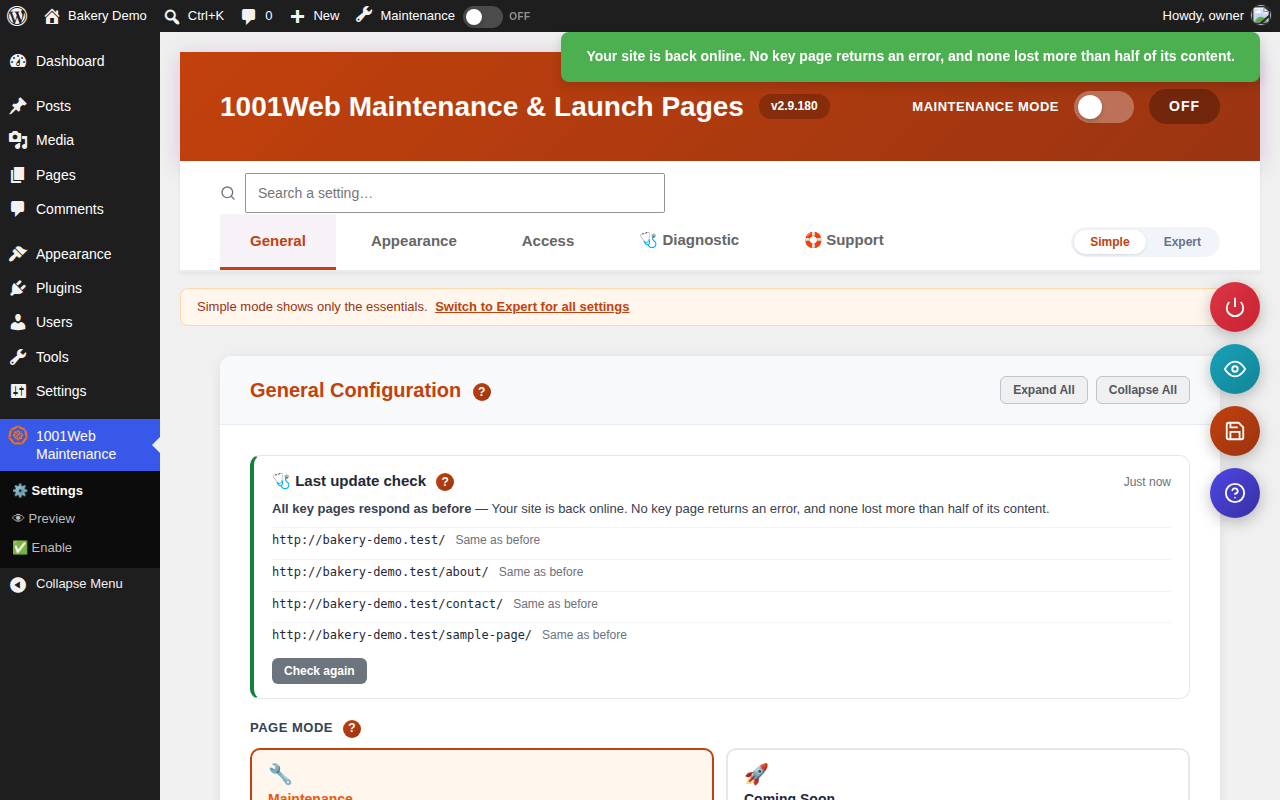
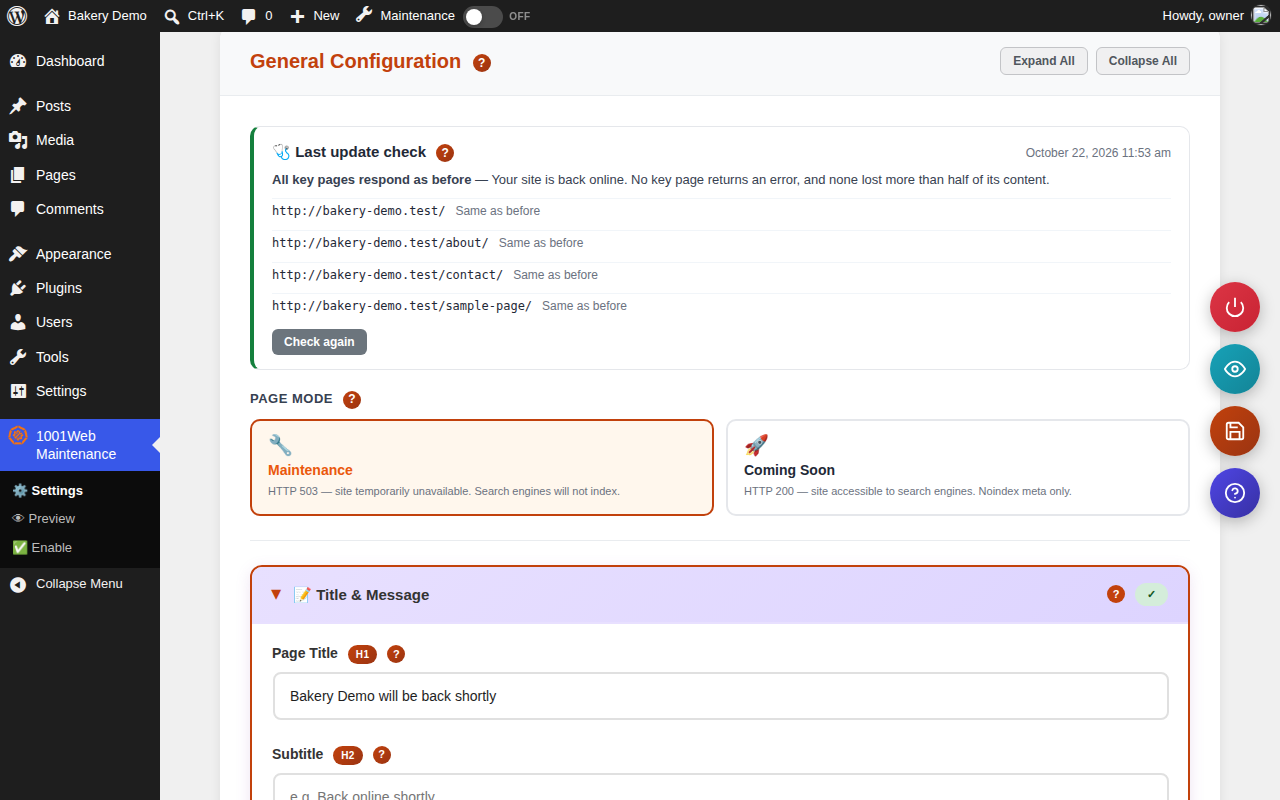
When maintenance ends, it requests them again and flags any page that now returns an error or lost more than half of its HTML. A page that does not answer within 5 seconds, and a page that could not be compared (“Not checked”), give a warning, never an “all fine” result. Slower answers are shown but not flagged. These requests follow up to two redirects and, like WordPress’s own requests to itself, do not verify the TLS certificate (filter https_local_ssl_verify). If a page broke, one click puts the site back in maintenance while you fix it, and the comparison keeps the healthy record. The latest result stays visible in the General tab, under “Last update check”, with a button to check again. Developers can change the list of pages with the mgenius_healthcheck_urls filter.
Cache handling and the page comparison also run when a schedule starts or ends maintenance, and when a countdown ends it. After such an automatic end, the comparison runs in the background through WP-Cron.
The maintenance page
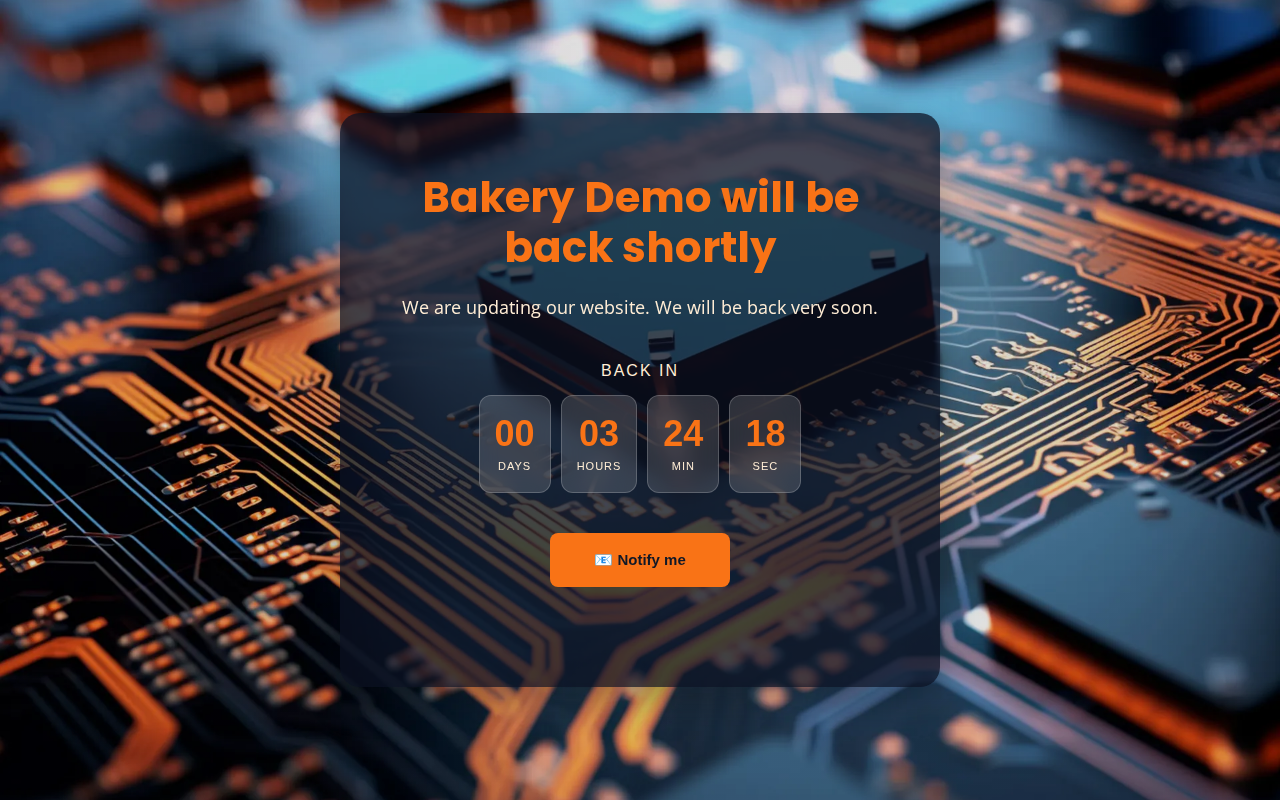
Visitors see a maintenance page (HTTP 503 with Retry-After) or a coming-soon page (HTTP 200 with noindex), with:
- design presets, colours, bundled fonts, background image or video, Lottie animations;
- a countdown, which can end maintenance automatically, and scheduled maintenance;
- a “Notify me” form that emails subscribers when the site is back online;
- access for chosen people: administrators (unless their IP address or user agent is on the blacklist), plus roles, IP addresses, URLs, a visitor password and time-limited access links;
- a blacklist of IP addresses and user agents, with an optional log of blocked attempts. It also applies when maintenance is off, to pages generated by WordPress; outside maintenance, a page served directly by a page cache does not reach it;
- while maintenance is on, the core REST API content routes (/wp-json/wp/v2/) answer 503 to visitors who cannot see the site either; editors, administrators and the people you let in keep access, and a setting in the Advanced tab turns this off;
- a setup wizard that can write the title and message for you (in a professional, friendly or humorous tone, with when you will be back and how to reach you), a Diagnostic tab with 8 checks, a searchable knowledge base, a help button on the settings screen and settings export and import.
Every feature of this plugin is free: no licence key, no locked feature and no time limit.
Privacy
GDPR mode is on by default: the maintenance page loads no animation hosted on another website. All fonts are bundled with the plugin, so nothing is ever loaded from Google Fonts. The checks described above only request your own site, unless one of its pages redirects elsewhere. Optional services you enable yourself, and content hosted on another website, are listed under External Services.
External Services
The plugin connects to the following services only in the situations described. The visitor check and the page comparison only request your own site (they follow up to two redirects, so a page that redirects to another website is requested there too).
1. Cloudflare Turnstile (optional, bot protection, off by default)
– URL: https://challenges.cloudflare.com/turnstile/v0/api.js and https://challenges.cloudflare.com/turnstile/v0/siteverify
– When: only when the administrator enables Turnstile. While it is enabled and a site key is set, the visitor’s browser loads the Cloudflare script on every view of the maintenance or coming-soon page, even when no protected form is shown. The server contacts Cloudflare when a visitor submits a protected form (email signup or visitor access), and for the Turnstile check of the Diagnostic, which runs when the administrator clicks “Run analysis” or opens the “Request assistance” form.
– Data sent: when the script loads, the visitor’s IP address and browser information reach Cloudflare. For form verification, the server sends the visitor’s Turnstile token, your Turnstile secret key and the visitor’s IP address. The Diagnostic check sends only your secret key and a test value.
– Privacy policy: https://www.cloudflare.com/privacypolicy/
– Terms of use: https://www.cloudflare.com/website-terms/
2. YouTube (optional, video background)
– URL: https://www.youtube.com/embed/
– When: only when a YouTube address is entered in the video background settings, typed by the administrator or brought by an imported settings or design file. The maintenance page loads the video only while the video background is on; the settings screen shows a preview of the video as long as the address is saved, even with the video background off.
– Data sent: the visitor’s (or administrator’s) IP address and browser information reach YouTube when the embedded player loads.
– Privacy policy: https://policies.google.com/privacy
– Terms of use: https://www.youtube.com/t/terms
3. Vimeo (optional, video background)
– URL: https://player.vimeo.com/video/
– When: only when a Vimeo address is entered in the video background settings, typed by the administrator or brought by an imported settings or design file. The maintenance page loads the video only while the video background is on; the settings screen shows a preview of the video as long as the address is saved, even with the video background off.
– Data sent: the visitor’s (or administrator’s) IP address and browser information reach Vimeo when the embedded player loads.
– Privacy policy: https://vimeo.com/privacy
– Terms of use: https://vimeo.com/terms
4. WhatsApp (optional, contact panel)
– URL: https://wa.me/
– When: only when the administrator adds a WhatsApp number to the contact panel, and only if a visitor clicks the link.
– Data sent: nothing is sent by the plugin; the link opens WhatsApp in the visitor’s browser or app.
– Privacy policy: https://www.whatsapp.com/legal/privacy-policy
5. Animations hosted on another website (optional, off while GDPR mode is on)
– When: on the maintenance page, only if the administrator turns GDPR mode off and enters an animation URL hosted on another website (for example on LottieFiles). The preview on the settings screen loads such an animation whatever the GDPR mode. The settings screen also links to lottiefiles.com to find animations; that is a plain link.
– Data sent: the browser downloads the animation file directly from that website, which receives the visitor’s (or administrator’s) IP address. Nothing is sent by the plugin itself.
– LottieFiles terms: https://lottiefiles.com/page/terms-and-conditions
– LottieFiles privacy policy: https://lottiefiles.com/page/privacy-policy
6. Images hosted on another website (logo or background image)
– When: only if the image address points to another website, for example when your Media Library is served from a CDN or a cloud storage service, or when an imported settings file contains such an address.
– Data sent: the visitor’s browser downloads the image from that website, which receives the visitor’s IP address. Nothing is sent by the plugin itself.
7. 1001Web support (optional, only when you send a support request)
– How: an email is sent to the 1001Web support team with your own site’s mail configuration. No HTTP request is made to a 1001Web server. The screen also links to client.1001web.ca, our support desk; that is a plain link.
– When: only when you fill in the Request assistance form, confirm your consent and click send.
– Data sent: your message, the email address you enter, and a technical report (site address, WordPress, PHP and MySQL versions, server software and limits, language and time zone, theme, active and must-use plugins, detected cache plugins, plugin settings state, diagnostic results). The report can be read in full before sending.
– Privacy policy: https://maintenancegenius.ca/en/privacy-policy/
Third Party Libraries
The plugin bundles the following code, fonts and photos. Code and fonts are unmodified; the photos are only resized and converted to WebP.
dotLottie Player web component (LottieFiles), version 2.7.12, MIT License
– Bundled at: assets/js/vendor/dotlottie/
– Purpose: plays Lottie and .lottie animations on the maintenance page
– Distributed as the official pre-built ES module files of the npm package
– Package: https://www.npmjs.com/package/@dotlottie/player-component/v/2.7.12
– Source code: https://github.com/dotlottie/player-component
– License text: assets/js/vendor/dotlottie/LICENSE
– The build includes: @dotlottie/common 0.7.11 and @dotlottie/dotlottie-js 0.7 (LottieFiles, MIT); lottie-web 5.12.2 (Airbnb, MIT, https://github.com/airbnb/lottie-web), with Transformation Matrix 2.0 (Epistemex, MIT); Lit 2 (Google LLC, BSD-3-Clause, https://github.com/lit/lit); howler.js 2.2.3 (James Simpson and GoldFire Studios, MIT); XState 4 (David Khourshid, MIT); @preact/signals-core 1 (Preact Team, MIT); fflate 0.8 (Arjun Barrett, MIT); Valibot 0.13 (Fabian Hiller, MIT); tslib helpers (Microsoft, 0BSD)
– License texts of the included code: assets/js/vendor/dotlottie/LICENSE-lottie-web and assets/js/vendor/dotlottie/THIRD-PARTY-LICENSES.txt
Fonts: Poppins, Open Sans, Roboto, Lato, Montserrat, Playfair Display, Raleway, Inter, Nunito and Merriweather, SIL Open Font License 1.1
– Bundled at: assets/fonts/ (latin and latin-ext, weights 400 and 700, WOFF2)
– Purpose: the fonts offered for the maintenance page, served from your own site
– Distributed as the Fontsource packages, version 5.3.0: https://fontsource.org
– License texts: assets/fonts/*-OFL.txt
Preset background photos (assets/images/presets/), from StockSnap.io, all under the CC0 1.0 public domain dedication (https://creativecommons.org/publicdomain/zero/1.0/). Resized to 1920 px and converted to WebP.
– genius.webp: “Futuristic Circuits” by Altered Reality, https://stocksnap.io/photo/futuristic-circuits-OZPRB0FQZK
– dark.webp: “Futuristic Technology” by Build Tier List, https://stocksnap.io/photo/futuristic-technology-YWJQBD3VIX
– light.webp: “Cables Wires” by Michal Jarmoluk, https://stocksnap.io/photo/cables-wires-NTBTAJYIOK
– corporate.webp: “Wireframe Sketch” by FOCA Stock, https://stocksnap.io/photo/wireframe-sketch-2QBWAOT5KL
– zen.webp: “Desert Landscape” by Jonatan Pie, https://stocksnap.io/photo/desert-landscape-48PEFQTUQV
– nature.webp: “Green Trees” by Dimitri Tyan, https://stocksnap.io/photo/green-trees-HAOETHJSSF
– tech.webp: “Technology Network” by HD Wallpapers, https://stocksnap.io/photo/technology-network-PN7RVGLUUD
– christmas.webp: “Christmas Xmas” by Element5 Digital, https://stocksnap.io/photo/christmas-xmas-EI32JIXJ7Q
Screenshots
Installation
- Install and activate the plugin from the Plugins screen.
- Open 1001Web Maintenance in the admin menu: the setup wizard helps you write the title and message, choose a style and set visitor access. Its last step lets you launch maintenance or save without activating.
- Before an update, switch maintenance on from the plugin page and read the “What visitors receive” panel. The admin bar switch works too and shows a short result.
- Run your updates.
- Switch maintenance off, and read the comparison of your key pages.
FAQ
-
What is the difference between Maintenance and Coming Soon?
-
Maintenance returns HTTP 503 with a Retry-After header and noindex: search engines treat it as a temporary outage. Coming Soon returns HTTP 200 with a noindex meta tag: use it for a site that is not launched yet.
-
Will my search rankings be affected?
-
A 503 with Retry-After tells search engines that the outage is temporary, which is the recommended way to take a site offline briefly. Keep maintenance short: a 503 that lasts for days can affect indexing.
-
Which cache plugins are handled?
-
The Description lists what is changed for each of them. Other cache plugins only receive the DONOTCACHEPAGE constant and the no-cache headers of the Cache Guard; whether they follow them depends on each plugin. Varnish, Nginx and CDN caches are not changed; the visitor check shows whether one of them still serves the normal site.
-
Is it compatible with Cloudflare?
-
Yes. The maintenance page is sent with headers that forbid caching. If you use a “Cache Everything” rule, purge the Cloudflare cache after switching maintenance on, and check the “What visitors receive” panel.
-
Can people still reach the site during maintenance?
-
Administrators can, unless their IP address or user agent is on the blacklist (the dashboard always stays reachable). You can also allow roles, IP addresses (exact, with a wildcard such as 192.168.*, or a range such as 203.0.113.0/24 or 2001:db8::/32) and URLs, share a visitor password, or create time-limited access links.
-
What happens when I deactivate or delete the plugin?
-
Deactivating it switches maintenance off for good and restores your cache plugins and the .htaccess file. Deleting it always removes its scheduled task and its temporary files. Its options, short-lived transients and uploaded animations are kept by default, so a reinstall finds them again; to erase them too, enable “Delete all my settings if I uninstall the plugin” in the Advanced tab (click Expert to show it) before deleting.
-
Why won’t maintenance mode switch on?
-
The plugin needs WordPress to write files directly: it suspends cache plugins through their settings and your .htaccess file. If WordPress uses FTP or SSH on your server, ask your host to run PHP as the owner of your WordPress files, or define FS_METHOD as ‘direct’ in wp-config.php if PHP may write to them.
-
How do I get out of maintenance mode if something goes wrong?
-
Log in at /wp-admin: administrators always get through, and the switch on the plugin page or in the admin bar turns maintenance off. If you cannot reach wp-admin at all, use FTP or your host’s file manager to rename the folder wp-content/plugins/1001web-maintenance-launch-pages: the plugin is then deactivated and the site is back to normal at once. When you can log in again, open the Plugins screen once so WordPress records that the plugin is gone, then rename the folder back and activate the plugin: maintenance stays off, and your cache plugins and the .htaccess file get their settings back.
-
Does the plugin install other plugins or change things I did not ask for?
-
It never installs, downloads or updates other plugins, and it has no licence key or locked feature. While maintenance is on it changes only what the Description lists (cache plugin settings, cache rules in .htaccess, cache files), and it puts them back when maintenance ends.
-
Which PHP and WordPress versions does it support?
-
PHP 7.4 or later and WordPress 6.4 or later. The tests run on PHP 8.4 with a recent WordPress. If something fails on an older PHP version, please report it in the support forum with your PHP and WordPress versions.
-
Does it support multisite?
-
Multisite networks are not supported: the .htaccess file and the cache plugins are shared by every site of a network. Network activation is refused with an explanation.
-
Where is the data stored?
-
In the WordPress options table, in options prefixed with mgenius_, and in short-lived transients prefixed with mgenius_ (rate limits and login lockouts, keyed by a hash of the visitor’s IP address). Uploaded animations are stored in wp-content/uploads/1001web-maintenance-launch-pages/lottie/. Subscriber email addresses, with their signup date and a hash of their IP address, are stored in a non-autoloaded option. Visit statistics, off by default, store hashed IP addresses only. The optional log of blocked attempts, off by default, stores the IP address, user agent, requested address and reason of each blocked request.
Reviews
There are no reviews for this plugin.
Contributors & Developers
“1001Web Maintenance & Launch Pages” is open source software. The following people have contributed to this plugin.
Contributors
“1001Web Maintenance & Launch Pages” has been translated into 1 locale. Thank you to the translators for their contributions.
Translate “1001Web Maintenance & Launch Pages” into your language.
Interested in development?
Browse the code, check out the SVN repository, or subscribe to the development log by RSS.
Changelog
2.9.181
- Support tab, Useful Links: a new button opens the setup wizard again. Nothing changes until its last step, and “Skip wizard” changes nothing.
- Diagnostic and “Last update check”: a result saved in another language is now flagged, with a prompt to run the check again, instead of being shown as is.
- Visitor page: a title or message still equal to an English default (never edited) now shows the default text in the site language.
- Diagnostic: with WP-Cron disabled, the check now looks at the task queue. If no task is more than 30 minutes late, it confirms that a server cron job runs them, instead of always warning.
- Visitor statistics: the numbers no longer overlap their labels, and the “Since” date follows the site date format.
- Readme: the support request section no longer shows an internal email address.
2.9.180
- In Coming Soon mode (and in maintenance without the 503 option), robots.txt now returns a plain “Disallow: /” file and XML sitemaps return 404, instead of the HTML page with a 200 that crawlers read as an invalid file. The 503 maintenance page is unchanged.
- On a multisite network, network activation is now refused with an explanation (multisite was already documented as not supported).
- The Retry-After setting is now capped at 168 hours (7 days) on the server too, not only in the form.
- The critical diagnostic banner uses the same warning icon as the rest of the plugin.
- Turning maintenance mode on now asks for confirmation (settings switch, floating button, admin bar and admin menu), so a stray click can no longer take the site offline. Turning it off stays immediate.
2.9.179
- Initial release on WordPress.org.